How do you share clips for customers to purchase (unlock)?
To share clips for customers to unlock, follow the steps below:
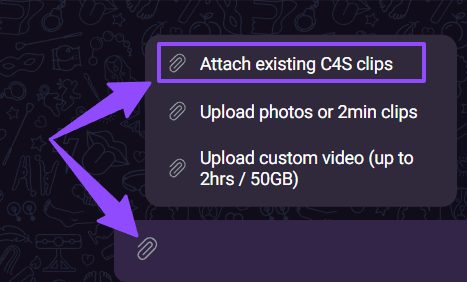
- In chat, press the attach button.
- Select “attach existing C4S clips”.
- A modal will open, showing your clip library.
- Select up to 25 clips you’d like to send.
- Choose whether to send them at full price or with a discount (discount can be managed from the lower right corner, you can set up to 30% discount).
- Once sent, the customer will see an unlock button next to each clip.
Can you send free photos or clips to customers?
Yes! When uploading media files to chat, you can choose whether the content is free or paid.
Here’s how you can send free media:
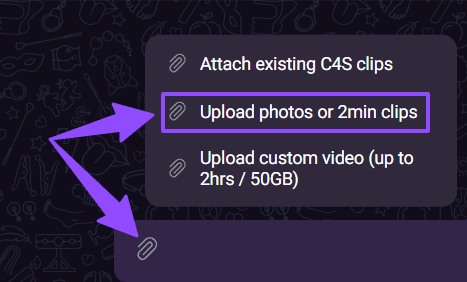
- Click the Attach button in chat.
- Select "Upload photos or 2min clips".
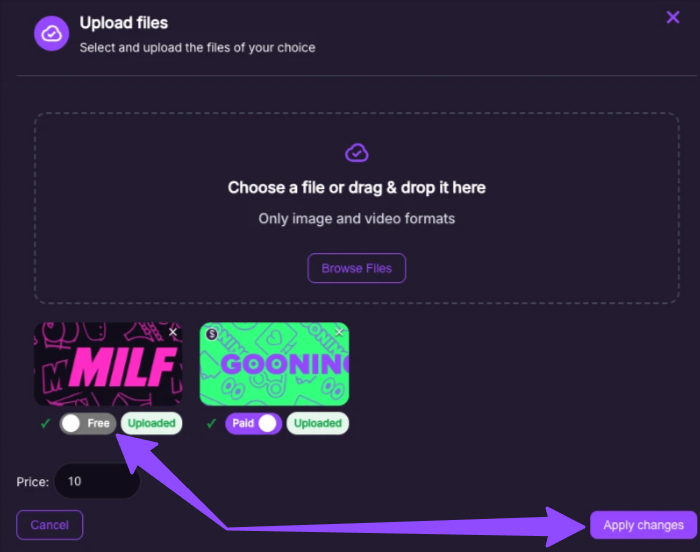
- Choose the image(s) and/or video files you want to send.
- Keep the gray “free” toggle for media you want to send for free and apply changes.
- Press Close, add an optional message, and send the media to the customer.
Tips:
- Double-check your files before sending to make sure everything looks correct.
- Videos must be 2 minutes or less.
- For longer videos, you must cut them into 2-minute parts and send them that way.
Sending Paid Media
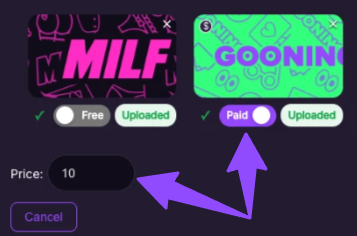
To send paid media, simply toggle the “paid” button and set the price.
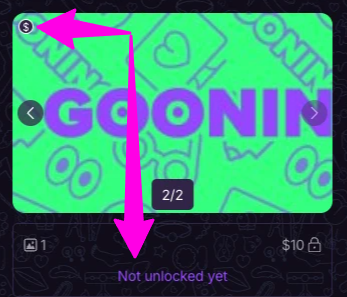
Once sent, the paid media will display a $ sign on it and you can see whether the content has been unlocked or not.
 |  |