You can create custom previews for your clips by selecting specific segments of your video and setting start and end points, giving you full control over what is shown. This feature is available both during the clip upload process and directly from the Content Management page.
How It Works
Method 1: During Clip Upload
- While uploading a clip, proceed to Step 2 - Previews.
- Click "Manage" and set the start and end points for your desired preview segment, then click “Generate Preview”.
- Confirm that the correct preview is saved to the clip and proceed with your upload.

Method 2: From the Content Management Page
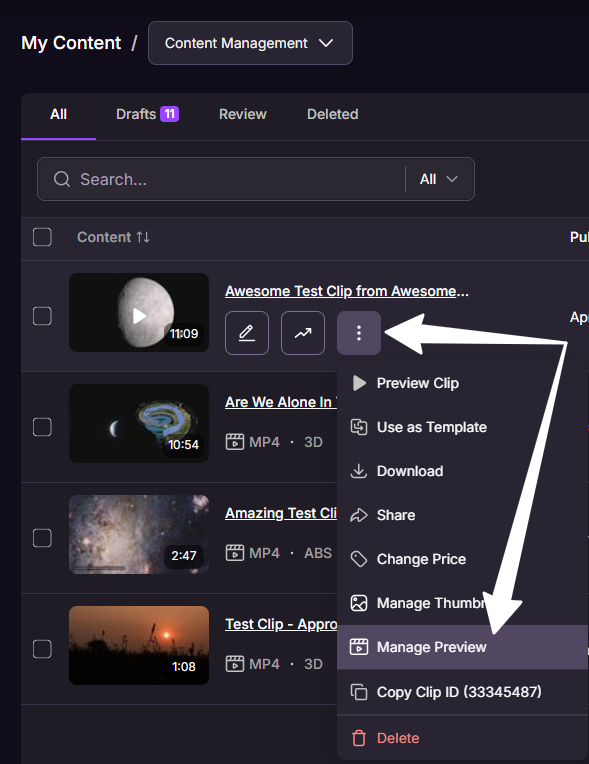
- Go to the Content Management page.
- Click the three-dot menu next to the clip.
- Select Manage Preview.
- Choose your preview segments by setting the desired start and end points.
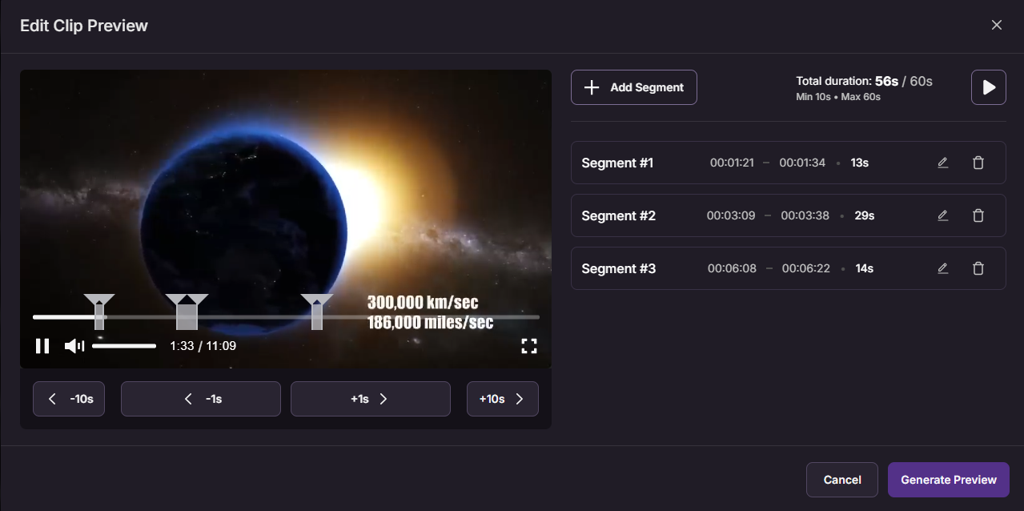
- Click Generate Preview.
- Review the generated preview. From here, you have two options:
- Apply Preview – Save the preview to your clip.
- Edit Segments – Return to the preview editor and adjust your selections.
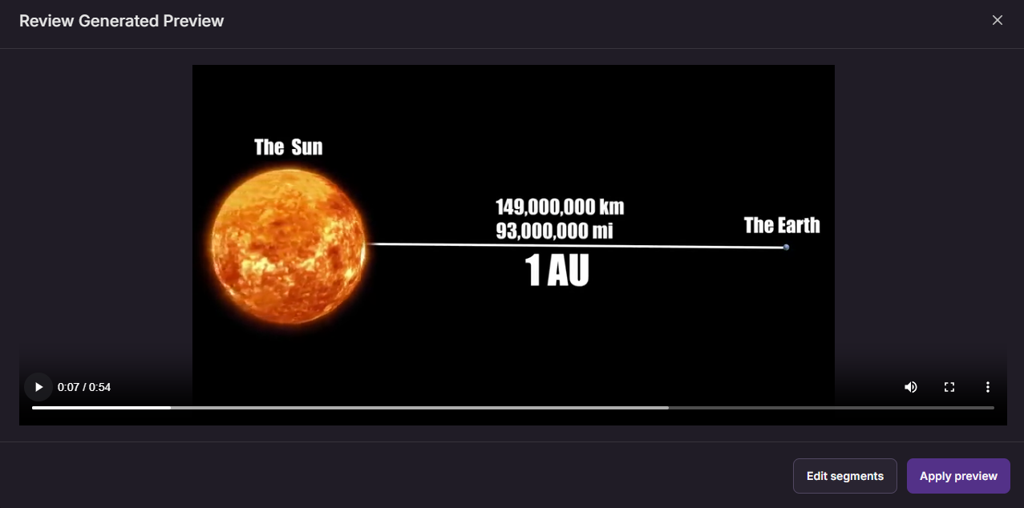
Once applied, the preview will be used as the clip's preview in the store and clip listings.