You can create custom thumbnails for your clips by selecting a frame from your video and setting it as the clip’s preview image. This feature is available both during the clip upload process and directly from the Content Management page.
How It Works
Method 1: During Clip Upload
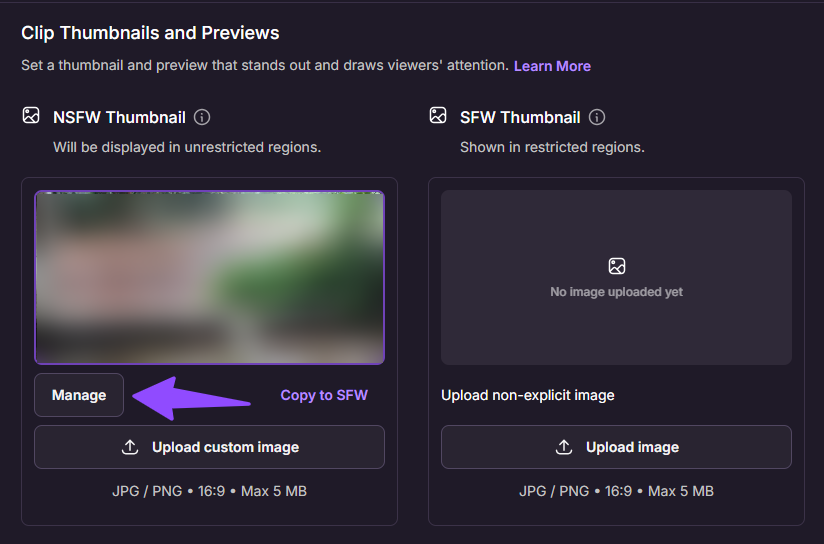
- While uploading a clip, proceed to Step 2 - Previews.
- Click Manage and select the desired frame position in the clip, then click “Capture Frame”.
- Confirm that the correct frame appears in the thumbnail preview and proceed with your upload.
Method 2: From the Content Management Page
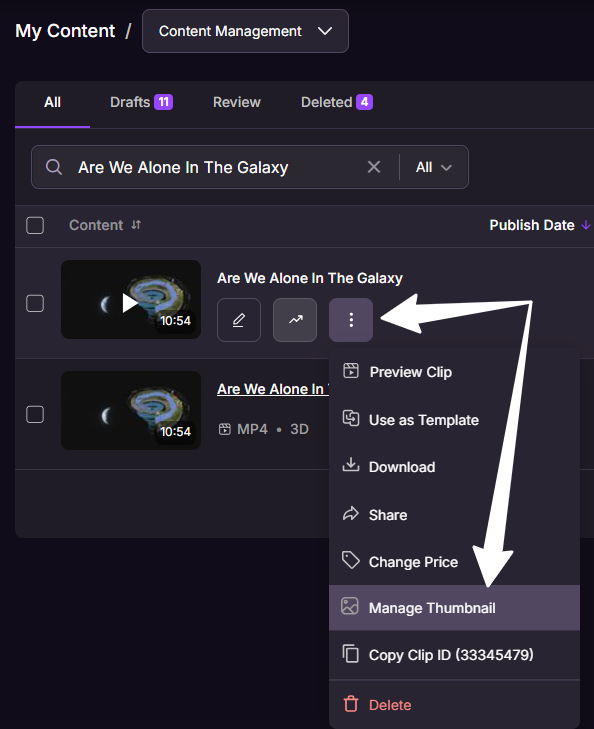
- Go to the Content Management page.
- Click the three-dot menu next to the clip and select “Manage Thumbnail”.
- Select the desired frame position in the clip, then click “Capture Frame”.
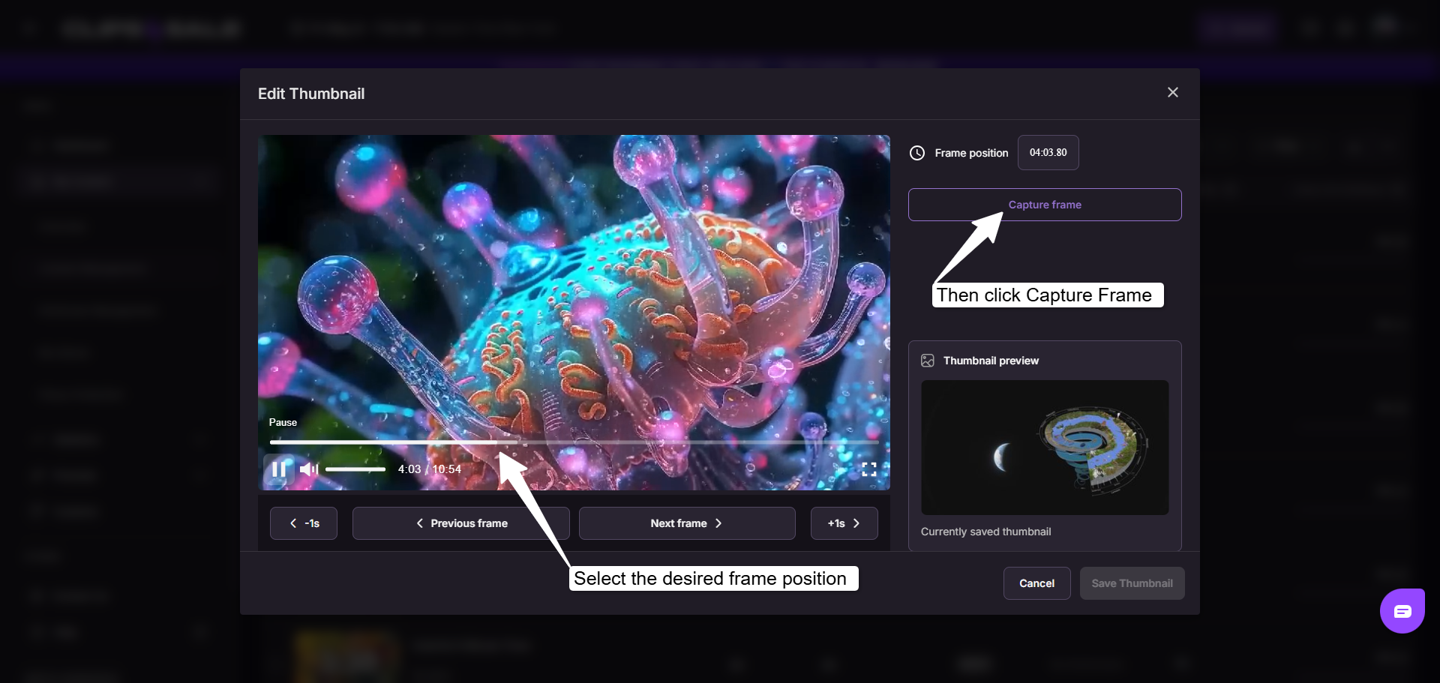
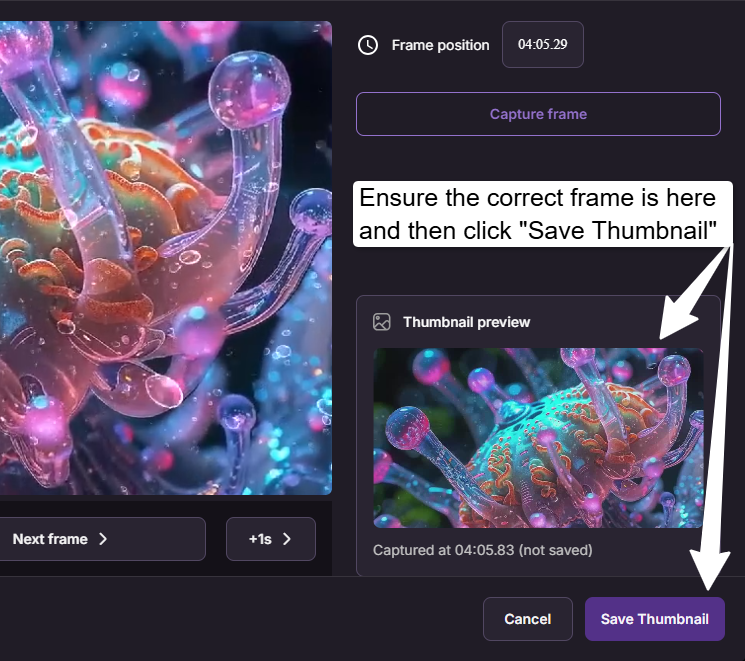
- Confirm that the correct frame appears in the thumbnail preview.
- Click “Save Thumbnail”.
Please note: You can create a custom thumbnail for clips in the following statuses:
- Pending
- Active
- Under Review
- Draft
- Hidden
❌ It is not available for clips that are still uploading.
If Video Processing Isn’t Finished
If the internal streamable version is not yet available, a “We’re processing your video” message will be displayed.
In this case, you can:
- Skip the process and return later once processing is complete, or
- Choose to receive an email notification when thumbnail editing becomes available