The Use as Template, Copy Details, and Paste Details tools help you save time when managing similar clips. Instead of entering the same information for each upload, you can quickly reuse clip details across new or existing content.
These features make it easy to:
- Create new uploads with pre-filled information.
- Reuse clip details across multiple clips.
- Keep your content consistent while reducing repetitive manual work.
Note: Although these features all reuse existing clip information, they serve different purposes. Use as Template creates a new draft based on an existing clip, while Copy Details and Paste Details work together to copy information from one existing clip to another.
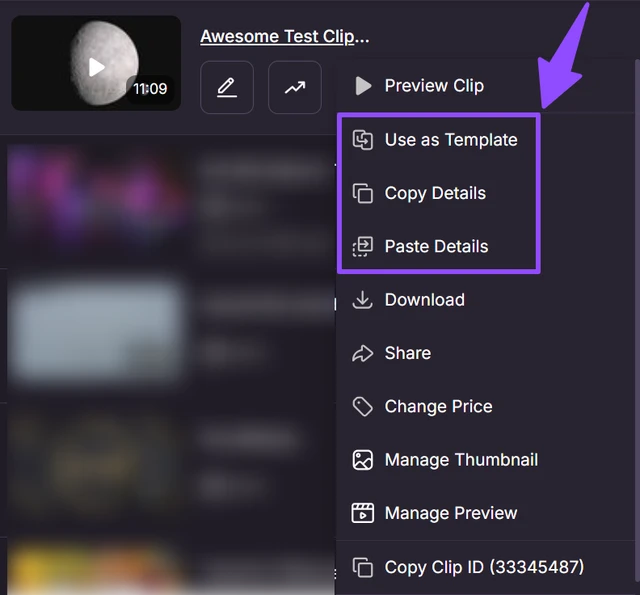
Use as Template
To create a new clip using an existing one as a starting point:
- Go to My Content > Content Management.
Click the three-dot menu next to the clip you want to use.
Select Use as Template.
Choose which information you'd like to copy into the new draft.
Click Create Draft (or the applicable confirmation button).
A new draft clip will be created with the selected information already filled in.
You can choose to copy:
- Title (the word "Copy" is automatically added to the original title)
- Description
- Primary Audience
- Category
- Related Categories
- Keywords
- Performers
- Price
- Thumbnail
- Preview
Copy Details
Use Copy Details when you want to copy information from one existing clip to another.
This action:
- Copies the selected clip's metadata.
- Does not create a new clip or make any changes on its own.
- Prepares the information so it can be pasted onto another clip.
Paste Details
After using Copy Details, you can apply the copied information to another clip.
To do so:
- Open the three-dot menu for the destination clip.
- Select Paste Details.
- Choose which information you'd like to apply.
- Confirm the changes.
This updates the selected clip with the copied information. It does not create a new clip.
Tip: If you want to copy information from a different clip while the selection window is open, click Change Source to choose another clip before applying the details.
If you have any questions or need help uploading your content, contact our Creator Experience Team. They’re available 24/7 and can be contacted via email, chat or phone!